Implementing Prebid SDK Android: A Publisher’s Guide to GAM Prebid-Rendered Integration
Mobile app monetization demands efficient, flexible ad delivery. Publishers increasingly look to header bidding to maximize yields and transparency, but integrating solutions like Prebid with Google Ad Manager (GAM) isn’t always straightforward.
This guide examines the Prebid-Rendered approach for Android apps using Prebid SDK with GAM. We’ll detail the end-to-end ad flow, clarify core configuration steps, and call out mistakes to avoid — all from a publisher’s operations-first perspective.
Core Concepts: What is the Prebid-Rendered Integration for GAM?
The Prebid-Rendered integration lets mobile apps use the Prebid SDK to run header bidding and allows Prebid to render winning display ads, while still leveraging GAM to manage ad inventory, select winners, and support various formats (banner, interstitial, rewarded, native).
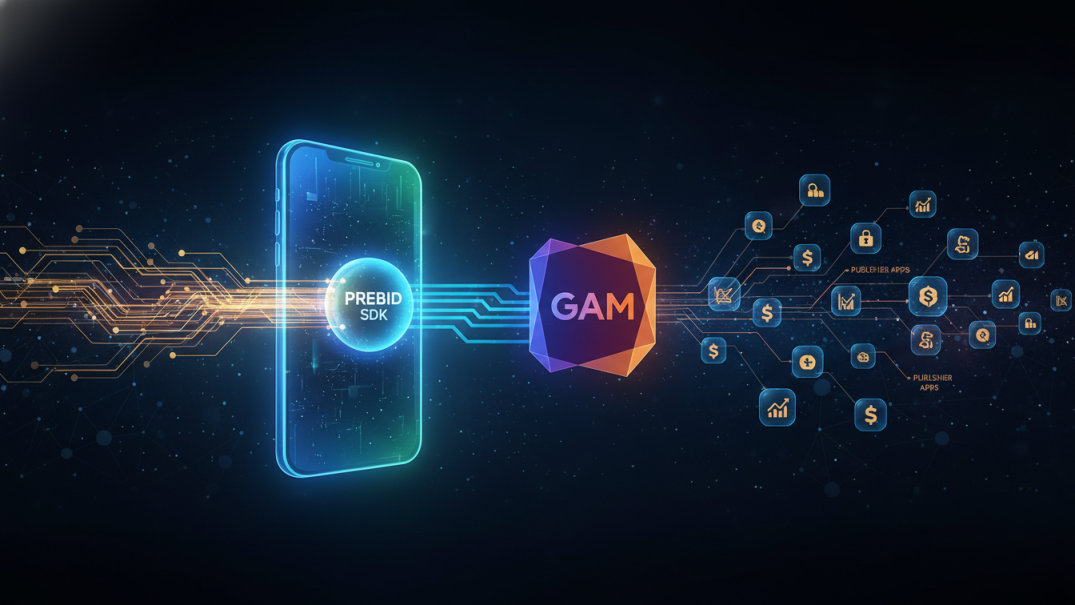
How the Bidding Flow Works
1. The Prebid SDK requests bids from the Prebid Server.
2. Prebid adds targeting data to the GAM ad request.
3. GAM selects a winner—if a Prebid ad wins, Prebid SDK renders it; if not, GAM uses its default renderer.
Example: A user opens an app page. Prebid SDK gathers bids from configured partners, attaches bid data to the GAM ad request, and GAM picks the highest-yielding ad. This enables fair auction dynamics and maximizes revenue.
Why Not the Bidding-Only Method?
Compared to GAM’s bidding-only option, the Prebid-Rendered path:
– Provides MRAID 3.0 and SKAdNetwork support—critical for interactive creatives and iOS privacy.
– Enables third-party rendering libraries.
– Does not rely on Prebid Cache, which streamlines data flow.
Drawback: Direct bid access is lost, and instream video requires a separate method. Publishers often mix both approaches for tailored setups.
Step-by-Step Technical Integration
Integrating Prebid SDK with GAM in ‘Prebid-Rendered’ mode involves configuring both your client app and GAM inventory. This process will affect ad ops, development, and revenue management workflows.
1. Required Tools and Setup
– A Google Ad Manager account with defined mobile inventory.
– The latest GMA SDK and Prebid Mobile SDK integrated into your app codebase.
– Access to a Prebid Server, whether self-hosted or managed, configured with relevant bidders and privacy settings.
2. App Development Steps
– Initialize Prebid SDK to connect to the Prebid Server.
– Set global parameters (e.g., privacy, user consent) to inform bidders.
– Retrieve configIds from Prebid Server for each ad unit.
– Link GAM AdUnits with Prebid units using unique event handlers provided by Prebid SDK.
Example: For banners, replace GAM’s AdManagerAdView with Prebid’s BannerView, assigning configId and event handler. For interstitials or rewarded, use equivalent InterstitialAdUnit and RewardedAdUnit components.
3. GAM and Line Item Configuration
– For each ad unit (banner, interstitial, rewarded, native), create separate GAM ad units and orders for the rendering approach.
– Use correct line item targeting (e.g., hb_pb, hb_format) and match to the creative type—either 3rd-party HTML, VAST URL, or GAM native.
– If migrating from bidding-only, keep old units to serve live traffic while new integrations are rolled out.
Rendering, Tracking, and Event Management: What Ops Teams Must Know
Publishers must understand rendering and tracking flows to align reporting, troubleshoot discrepancies, and ensure compliance with billing, privacy, and measurement standards.
Rendering Methods by Ad Format
– Banner and Interstitial: Prebid SDK writes the creative to a WebView when a Prebid bid wins and manages MRAID events.
– Rewarded Video: Uses the device’s video player and VAST from the bid response; Prebid SDK tracks VAST events and handles reward signaling.
– Native: The app, guided by Prebid SDK, renders ad assets and tracks events.
Each rendering path has specific event tracking logic—knowing where and how win, impression, and Open Measurement events are fired is crucial for troubleshooting.
Event Handlers and Listeners
Prebid’s GAM Event Handlers are special containers that wrap and manage ad views. Always use a unique handler for each ad view to avoid race conditions. Listen for loaded, displayed, and reward events to trigger UI updates or payouts. All ad loading must occur on the main (UI) thread, or integration will fail.
Common Mishaps and Troubleshooting Tips
– Forgetting to match configIds across GAM and Prebid Server can lead to blank ads.
– Not properly cleaning up event listeners can cause memory leaks or orphaned ad objects.
– Failing to update listeners for new ad lifecycle methods (e.g., reward event) results in broken user rewards or reporting.
Ad Unit-Specific Implementation Details
The integration specifics vary by ad format. Here’s how key ad units are implemented in Prebid-Rendered mode:
Banner Ads: Replacing GAM Banner with Prebid BannerView
– Create a new GamBannerEventHandler with the relevant GAM ad unit and size.
– Instantiate BannerView with the configId and event handler.
– Add BannerView to the app UI and call loadAd() on the main thread.
To migrate from bidding-only, swap out AdManagerAdView and related listeners for Prebid’s equivalents.
Interstitials: AdUnit Conversion Steps
– Create a GamInterstitialEventHandler and InterstitialAdUnit using your configId and handler.
– Load ads on the main thread and display when ready via appropriate listener callback.
– For multi-format support (banner + video), use EnumSet.of(AdUnitFormat.BANNER, AdUnitFormat.VIDEO).
Rewarded Ads: Customizing User Reward Logic
– Use GamRewardedEventHandler and RewardedAdUnit, linking stored configId.
– Implement reward event listeners to process payout when user earns reward.
– Configure server-side reward logic using the passthrough extension in Prebid Server to define attributes like reward type, value, and close actions.
Additional Configuration Best Practices
Ad position, caching settings, and migration strategies can significantly impact revenue and user experience.
Setting Ad Position for Targeting
Use adUnit.setAdPosition(AdPosition.XXXX) to specify where the ad displays (e.g., HEADER, FOOTER).
This helps buyers target and price placements accurately.
Handling Prebid Cache and Line Items
Coordinate with your Prebid Server provider to cache only where needed (typically for instream video). Misconfigured caching can slow down ad delivery or lead to missed billing events.
What this means for publishers
Adopting the Prebid-Rendered approach with GAM gives publishers more flexibility in rendering and tracking ads, enabling newer formats and deeper measurement but requires more attention to integration details. Ad operations and technical teams must adapt line item setups, coordinate with Prebid Server partners, and ensure proper event handling in code. Troubleshooting and migration processes are easier if old line items remain during the transition. Reporting differences may arise depending on who renders—Prebid or GAM—so align analytics and resolve discrepancies as part of go-live checklists.
Practical takeaway
Focus on clear separation between GAM and Prebid ad units; always map ad unit IDs and configIds correctly to avoid lost revenue or empty placements. Use unique event handlers for each instance and ensure all ad loading happens on the main UI thread for Android apps.
Work closely with your ad ops and development teams to update line items, creatives, and stored configurations in tandem. Document ad flows internally, especially changes to reward logic, rendering paths, or third-party measurement tools. Regularly audit event tracking to ensure that win, impression, and Open Measurement signals are fired consistently for compliance and revenue validation.
Start with a phased rollout—migrate ad units one type at a time, monitor performance, and compare reporting between Prebid and GAM. This will help pinpoint gaps, streamline troubleshooting, and allow teams to make informed optimizations quickly.
